You can get from an IteraMesh Preset to a first print without CAD: choose a size, download the model, prepare it for your printer in a slicer, inspect the layer preview and print.
The short answer
Choose a published Preset, check that it suits your printer, and download its model file. Open that file in a slicer, select your printer and filament, inspect the sliced preview, then send the printer instructions to your printer. You do not need to draw the model in CAD.
1. Choose something that suits your printer
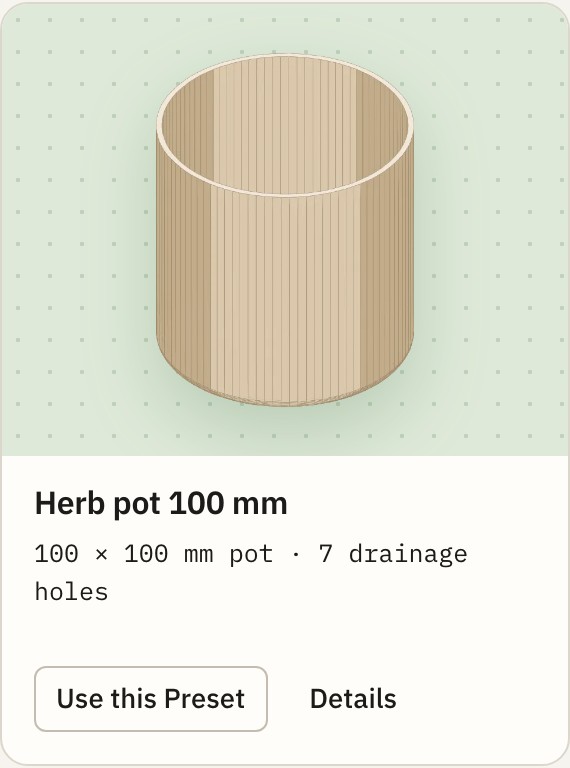
Browse Categories and open a Preset for something you would actually use. A Preset is a ready-sized version of a Template: its page shows what it makes, the stated dimensions and print guidance. Start with a size you can check against your printer and the space or object it needs to fit.
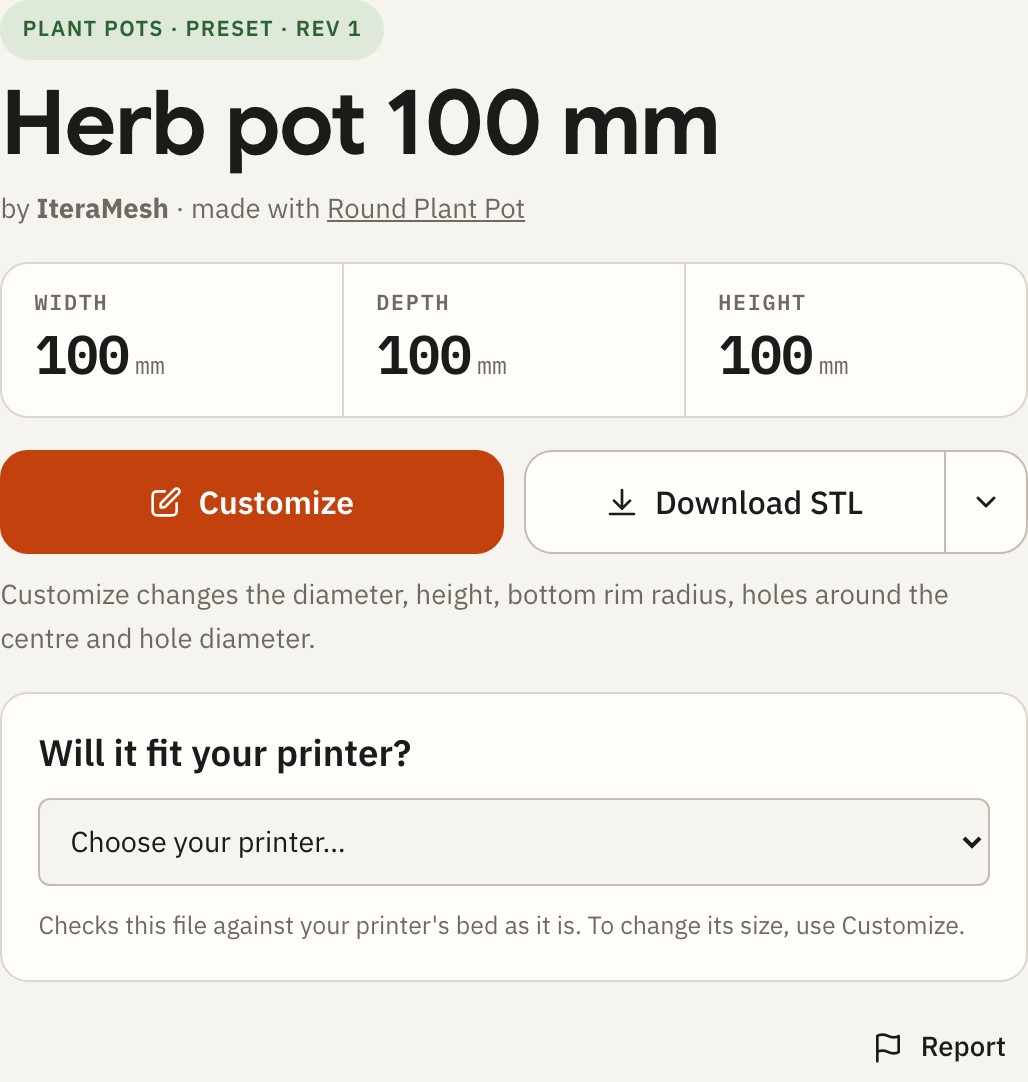
For a concrete example, the Herb pot 100 mm Preset shows a 100 mm width, depth and height. Its page says the rounded bottom rim may need supports for a clean edge. Those details matter more than the picture alone when you are deciding what to print first.
2. Check the size and download the model
On the Preset page, choose your printer in the fit checker. It compares the file with the printer profile shown there. If the Preset is too large, use Customize to change the dimensions where that Template allows it, or choose another Preset. The fit check is about build space; it does not guarantee a finished physical fit or a successful print.
If the existing size works, use Download STL. STL carries the model shape; it is not the printer instructions. IteraMesh also offers 3MF downloads for specific slicers. For a first pass, STL is a simple format to open in your own slicer and configure for your printer.
3. Prepare it in a slicer
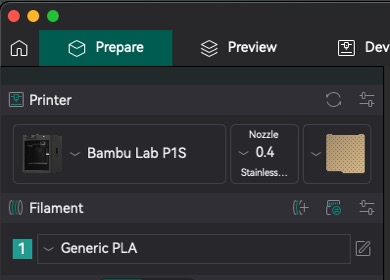
A slicer turns the model and your print settings into instructions for the printer. OrcaSlicer is one example, shown below; use the slicer that supports your own printer. Import the STL, then select matching printer, nozzle, filament and process profiles for your equipment. Do not use a file of printer instructions prepared for a different printer.
Start with a suitable built-in print profile. Check that the model is resting on the build plate, fits the usable area and has the right orientation. Read the Preset’s print guidance before deciding whether it needs supports. A slicer may suggest settings, but the Preset page cannot choose every machine-specific setting for you.
4. Preview, then print
Use the slicer’s Slice action and inspect its layer preview before exporting or sending the job. Look at the first layer, the overall shape and any areas that would start printing in mid-air. If the preview is wrong, return to the preparation view, adjust the setup and slice again.
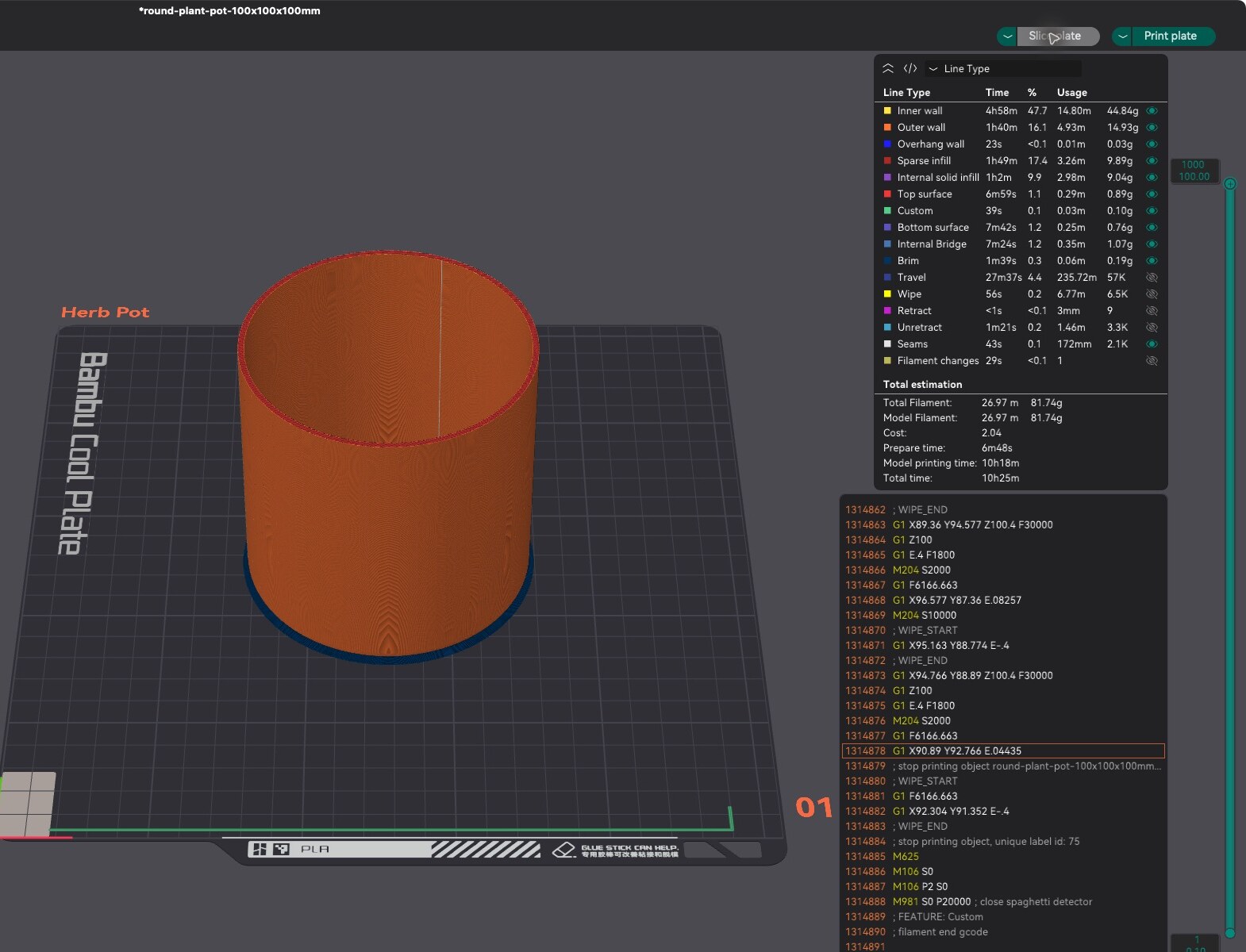
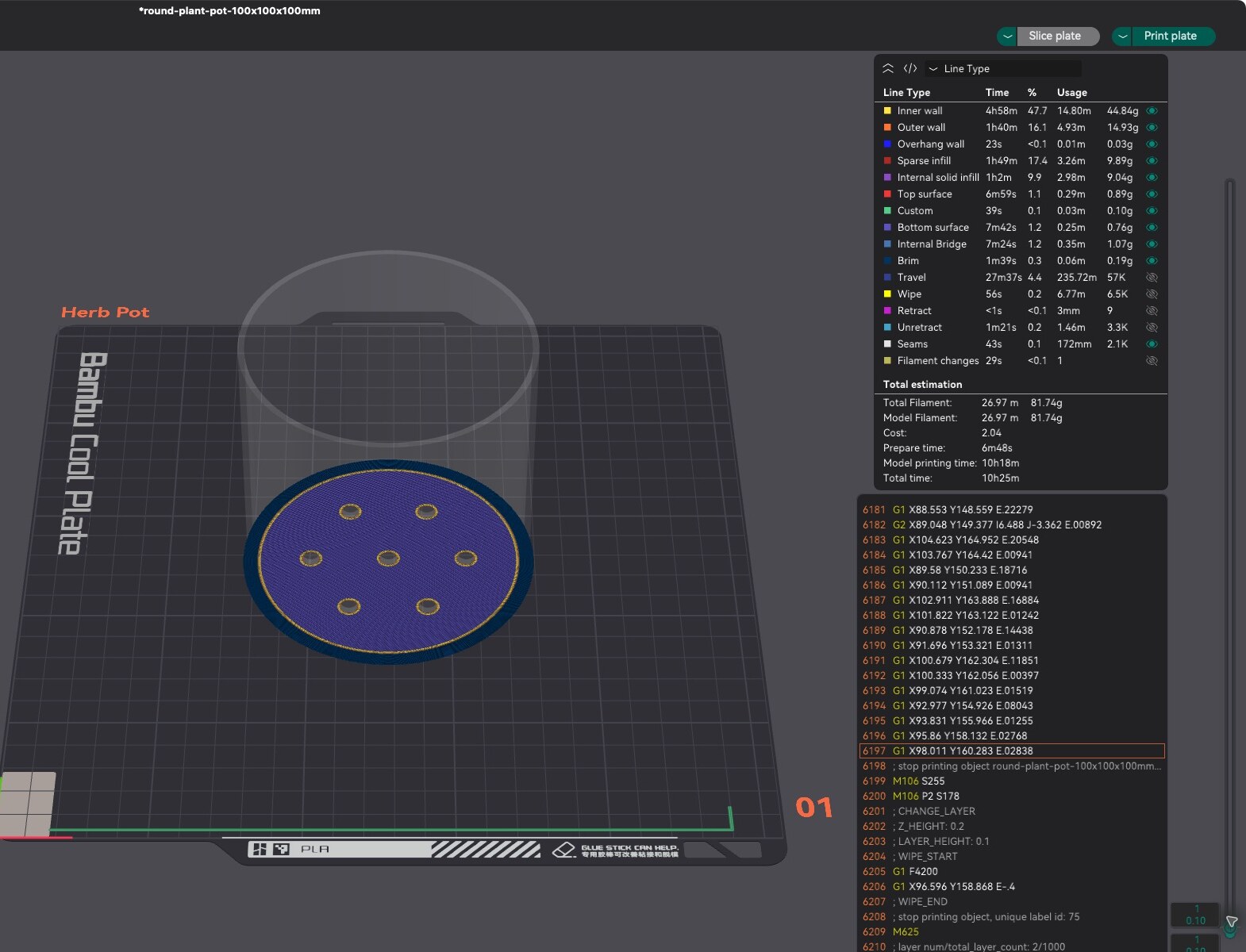
Export or send the printer instructions using the method your slicer and printer support. Watch the first layer begin. If it does not adhere or the preview shows a problem, stop and correct the setup before trying again. Keep the model file so you can change slicer settings without downloading or redesigning the model.
What this Guide does and does not cover
IteraMesh supplies the model and, for supported Templates, a way to change its measurements. Your slicer prepares that model for a particular printer and material. This Guide explains the handoff, but it does not claim that the example Preset has been printed or tested with your equipment. Check the Preset’s size, guidance and license, and follow your printer manufacturer’s setup and safety instructions.
Try the steps with a real Preset
The Herb pot 100 mm is a published Preset with a preview, stated dimensions and a downloadable file. Check its size and print guidance before deciding whether it suits your printer.